WooCommerce Speed Optimization: What Matters the Most


Most WooCommerce speed optimization guides follow the same script. Install a caching plugin, put Cloudflare in front of the store, compress your images, and watch the PageSpeed score climb into the 90s.
That advice works for your homepage, product pages, and blog posts. But it barely touches the requests where customers actually pay you. Add to cart, cart updates, checkout, and every logged-in session skip the page cache by design, and their speed depends on PHP, the database, and the CPU behind your store.
So what makes a WooCommerce store fast, and what should you fix first? Let's find out.
Cache every anonymous page you can, but don't judge your store by those pages. Cart, checkout, My Account, and AJAX requests can't come from a page cache or a CDN. Their speed depends on how much PHP and database work each request does, and how fast a single CPU core can run it. Measure those routes separately, cut plugin and query work, add a persistent object cache, and put the store on fast dedicated cores before you pay for more cores or PHP workers.
This is a documented assessment as of 18 October 2026. We didn't run a new WooCommerce load test for this article.
The hosting numbers come from the 2026 WooCommerce hosting benchmark, the WooCommerce numbers come from its developer blog and documentation, and the CPU comparison comes from our own DigitalOcean benchmark from 2021.
If you've read The State of WordPress Hosting in 2026, you've already seen part of this argument. This article covers the hands-on side: where a WooCommerce request spends its time once the cache stops answering, and the order in which I'd fix it.
Your Store Has a Cached Side and an Uncached Side
A WooCommerce store serves two very different kinds of requests from the same domain.
Logged-out visitors browsing your homepage, categories, and products see the same HTML as everyone else. A page cache or a CDN can store that HTML once and hand it out in a few milliseconds. Shoppers who add something to the cart, log in, or start checkout need a response built just for them, and that response has to come from your origin server every time.
Here's how the common WooCommerce requests split:
| Request | Cacheable? | What Decides Its Speed |
|---|---|---|
| Homepage, category, and product pages (logged out) | ✅ | Cache hit rate, CDN, front-end weight |
| Blog posts and static pages | ✅ | Cache hit rate, CDN, front-end weight |
Add to cart (wc-ajax or Store API) | ❌ | PHP execution, database queries |
| Cart page and cart updates | ❌ | PHP, database, coupon and shipping logic |
| Checkout page and Place Order | ❌ | PHP, database, payment and shipping APIs |
| My Account and logged-in browsing | ❌ | PHP, database |
| wp-admin (orders, products, reports) | ❌ | PHP, database, background jobs |
WooCommerce's own caching guide says the Cart, Checkout, and My Account pages have to stay dynamic. It also lists cookies such as woocommerce_items_in_cart, woocommerce_cart_hash, and wp_woocommerce_session_ that you can exclude from caching.
Depending on how your cache is set up, those cookies can make a shopper with an item in the cart skip the cache on every page, not just on cart and checkout. The Cache Rule in our Cloudflare Enterprise review works exactly this way, because it bypasses the edge cache whenever wp_woocommerce_session or woocommerce_items_in_cart is present.
The visitors most likely to buy are the ones who see the uncached version of your store.
Why Caching Plugins and CDNs Stop Helping at the Cart
A CDN removes origin processing time only when it serves cached HTML. For a cart or checkout request, it can still trim connection setup and routing (Cloudflare Argo is one example). But the request still has to reach your server and wait for PHP to finish.
Here's what one uncached checkout request typically goes through:
- It waits for a free PHP worker. If every worker is busy, it queues.
- PHP loads WordPress core, every active plugin, and your theme.
- WooCommerce loads the customer's session and recalculates the cart: prices, coupons, taxes, and shipping.
- WooCommerce and your plugins run their database queries against MySQL or MariaDB.
- Shipping, tax, fraud, and payment plugins may call external APIs and wait for the answers.
- On Place Order, WooCommerce writes the order, updates stock, and kicks off emails and other follow-up work.
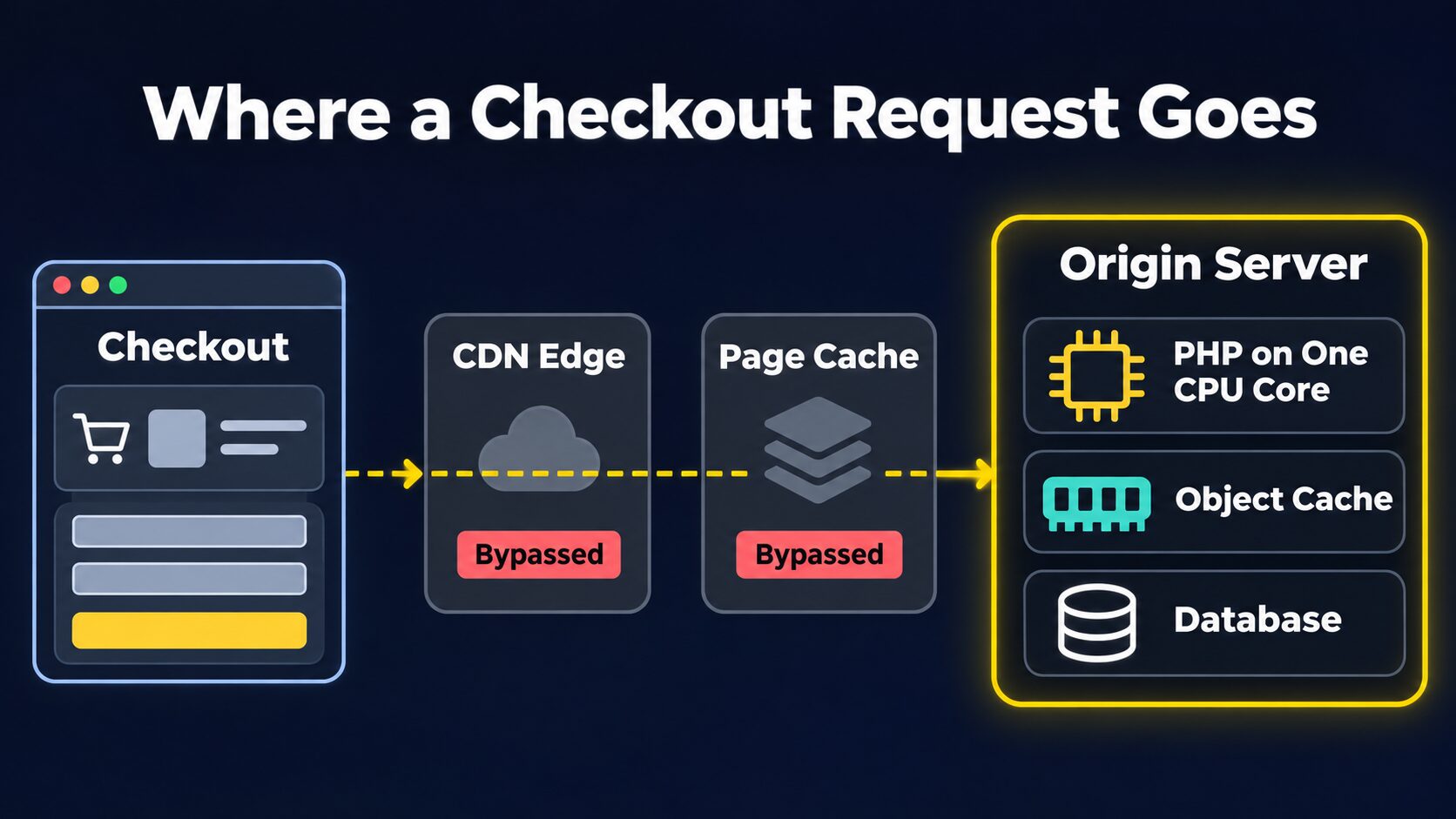
Notice that the request passes the CDN and the page cache without either of them serving it. The object cache is the only cache that helps here, and it only helps with database reads.
None of these steps shows up in a PageSpeed test of your homepage. And none of them gets faster when you install another optimization plugin, because those plugins work on cached HTML and front-end files.
What the 2026 WooCommerce Hosting Benchmark Shows
The best public evidence for this gap comes from the 2026 WooCommerce benchmark on wphostingbenchmarks.com. It runs a cached test that keeps requesting the homepage (K6 Static) and an uncached load test (LoadStorm) with WooCommerce personas that browse, add to cart, and buy.
Here's a table of the cached homepage response next to the uncached cart and buyer personas. All values are cumulative averages over the whole test:
| Host | Cached Homepage (Avg) | Cart Persona (Avg) | Buyer Persona (Avg) | LoadStorm Errors |
|---|---|---|---|---|
| Pressable | 5.6 ms | 240 ms | 104 ms | 0 |
| WordPress.com | 7.6 ms | 407 ms | 146 ms | 0 |
| WPX | 8 ms | 523 ms | 363 ms | 0 |
| Presslabs | 88.9 ms | 207 ms | 72 ms | 0 |
| HostArmada | 112.4 ms | 2,721 ms | 1,433 ms | 5,316 |
| GreenGeeks | 119.4 ms | 465 ms | 350 ms | 5 |
| Seravo | 210.6 ms | 1,335 ms | 783 ms | 1,549,768 |
The cached test hides most of the difference between hosts. Three of them answer the cached homepage in under 10 ms, yet their cart averages range from 240 ms to 523 ms.
The cached ranking doesn't predict the uncached one either. Presslabs is fourth on the cached homepage and first on cart response. HostArmada answers the cached homepage slightly faster than GreenGeeks, but its cart persona is almost six times slower (2,721 ms against 465 ms) and comes with 5,316 errors.
The averages also understate what customers feel at the worst moment. The WPX benchmark profile notes that its cart and checkout slowed to about 1.32 s and 2.47 s during the load test, while its cached pages averaged 5 to 8 ms.
This benchmark has limits. It tests one site per host, the site itself says its 2026 p95 values aren't comparable as global tail-latency figures, and it doesn't publish the CPU behind each plan. But it shows clearly that you can't pick a WooCommerce host from a cached TTFB result.
Rahul Singh's Monster Server Example
Rahul Singh, who works on WooCommerce performance, wrote one of the clearest explanations of why stores stay slow on expensive servers in his post on slow WooCommerce stores.
His example is a store on what he calls a monster server: 128 GB of RAM, 64 CPU cores, and 400 PHP workers. On paper, that machine should handle almost anything, yet in his example the cart still lags and customers still abandon checkout.
PHP runs each request on a single thread, so one customer's add-to-cart or checkout request uses one core at a time, no matter how many cores the server has. More cores let the server run more requests in parallel, but they don't make any single request finish sooner.
He lists four scaling mistakes that keep stores in this position. Here they are, with what I'd do about each:
| Scaling Mistake | Why It Doesn't Work | What to Do Instead |
|---|---|---|
| Relying on more CPU cores | Cores add parallel capacity, not per-request speed | Choose faster cores first, then add cores for concurrency |
| Relying on page caching | Page caching doesn't cover cart, checkout, or AJAX requests | Measure and optimize the uncached routes |
| Overloading the store with plugins | Active plugins run their code on every uncached request | Profile plugins per request and remove or replace the slow ones |
| Neglecting the database and background tasks | Slow queries and background jobs compete with buyers for the same server | Fix slow queries, add an object cache, and move jobs off the purchase path |
He also makes the hardware point directly: for this workload, 16 cores at 4.5 GHz often beat 64 cores at 2.5 GHz.
His post is an argument from experience, not a published benchmark. The monster server is an illustration, and the post doesn't attach measurements to it. But the mechanism behind it is easy to check, and it matches what we saw in our own CPU testing.
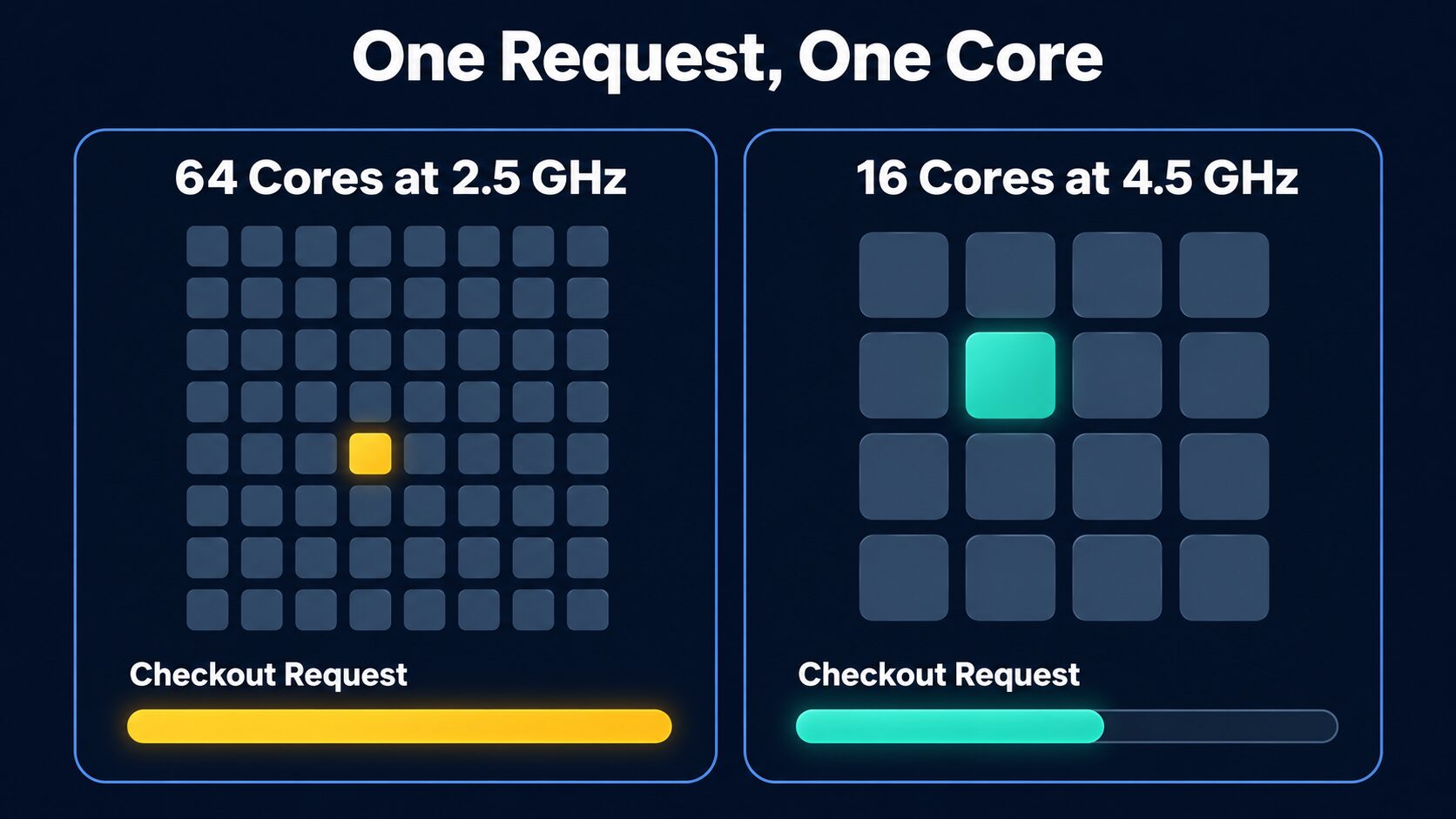
The extra cores on the left only start to matter once more requests are running at the same moment than the server has cores. Until then, every customer waits on the speed of one core.
The Single-Core Math
Let's understand this with an example. Suppose a checkout request needs 900 ms of CPU time on a 2.5 GHz core, and a 4.5 GHz core of the same architecture does the same work 1.8 times faster:
64 cores at 2.5 GHz: one checkout request takes about 900 ms
16 cores at 4.5 GHz: one checkout request takes about 900 / 1.8 = 500 ms
These are illustrative numbers. Real CPUs also differ in IPC, cache, and memory latency, not just clock speed, and part of every request waits on the database and external APIs instead of the CPU.
But the direction holds: a faster core shortens every uncached request, while extra cores help only when more requests are in flight than you have cores.
Little's Law estimates how many requests are in flight at once: the average number of requests in progress equals the arrival rate multiplied by the time each request takes.
20 uncached requests per second x 0.5 s each = 10 requests in flight on average
20 uncached requests per second x 2.0 s each = 40 requests in flight on average
A store averaging 10 dynamic requests in flight has no use for 64 cores. Also notice that the slower request needs four times as many busy workers for the same traffic. That's why making requests faster often fixes the "not enough PHP workers" problem as well.
What Our DigitalOcean Test Showed
In 2021, we compared DigitalOcean's Premium AMD and Premium Intel droplets at the same price, each with a single vCPU. The AMD CPU was 66% faster in Geekbench 5's single-core test. Both ran WordPress 5.8 with 10 plugins and no caching at all, which is the situation every WooCommerce checkout is in.
| Uncached WordPress, 10 Plugins | Premium AMD $6 | Premium Intel $6 |
|---|---|---|
| TTFB (average of 3 runs) | 185 ms | 385 ms |
| Stress test: successful responses | 300/300 | 10/300 |
| Stress test: average response time | 0.57 s | 14.56 s |
Both droplets cost the same and ran the same software on the same RAM. The faster CPU cut the uncached TTFB by more than half and kept the database alive through a stress test that crashed the Intel droplet.
It's an old test on plain WordPress rather than WooCommerce, but the full DigitalOcean AMD vs Intel benchmark shows how much the CPU decides once there's no cache to hide behind.
Start With an Uncached Baseline
Before you change anything, measure the routes your customers use, separately from your cached pages. These are the ones I'd time:
- Add to cart, from a product page and from a category page
- The cart page and a cart quantity update
- Applying a coupon and calculating shipping
- Loading the checkout page
- Place Order with a sandbox payment method
- My Account for a logged-in customer
- The orders and products screens in wp-admin
Time each route several times and look at the median and the slowest runs, not just one result. A route that takes 400 ms most of the time and 3 s during a sale has a capacity problem, not only a code problem.
The easiest way to see these requests is in the browser. Record a HAR file in Chrome DevTools while you add a product and go through checkout, then open it in our HAR file analyzer to find the slow wc-ajax and Store API calls. For the cart page itself, a quick check from the command line works too, since a correctly configured store never caches it:
# Time the first byte of the cart page five times (replace example.com with your store)
for i in 1 2 3 4 5; do
  curl -s -o /dev/null -w "%{time_starttransfer}\n" https://example.com/cart/
done
To find out why a request is slow, you need the server side:
- Query Monitor shows the number of database queries per request, the slowest queries, and which plugin or theme triggered them.
- An APM tool such as New Relic or Tideways shows where PHP spends its time, function by function, on real production traffic.
- The MySQL or MariaDB slow query log catches queries that only get slow on a large production database.
- Site Health in wp-admin flags common problems, including oversized autoloaded options.
Our TTFB test is still useful, but for the cached side: it shows how your public pages respond from 40 locations. Keep the two numbers apart. A 60 ms cached TTFB and a 1.8 s checkout can both be true on the same store.
What Matters Most for Cart and Checkout Speed
Here's the order I'd follow for the uncached side of a WooCommerce store:
| Rank | Optimization | What It Fixes |
|---|---|---|
| 1 | Fast, dedicated CPU cores | The speed of every uncached request |
| 2 | Less PHP work per request | Plugin and theme code on cart, checkout, and AJAX |
| 3 | A healthy database | Slow queries, autoload bloat, and order storage |
| 4 | A persistent object cache | Repeated database reads |
| 5 | Current PHP with OPcache | PHP execution and compile overhead |
| 6 | PHP workers sized to real concurrency | Queueing during traffic spikes |
| 7 | External calls and background jobs off the purchase path | Waiting on APIs, cron, and emails |
| 8 | Controlled AJAX, Store API, and bot traffic | Uncached requests nobody needed |
| 9 | Cached, lightweight public pages | LCP and INP on anonymous pages |
There's one exception to this order. If profiling shows a single plugin adding a second to every checkout, fix that first, since it's cheaper than a migration and a faster CPU would only shave part of that second off.
1. Put the Store on Fast, Dedicated CPU Cores
Every other fix on this list runs on top of the CPU. A 30% saving from plugin cleanup is 30% of whatever your core can do, and no plugin can swap the processor underneath your server.
This is why I'd rather see a host publish its CPU model and whether the cores are dedicated than advertise "unlimited PHP workers." Shared vCPUs on a busy machine can give you a fast benchmark at 3 AM and a slow checkout at 8 PM, because your requests compete with the neighbors for the same physical cores.
When you compare hosts, ask for:
- the CPU model and generation, not just a GHz number;
- whether the vCPUs are dedicated or shared, and how CPU limits are enforced;
- where the database runs, since every query to a separate server adds a network round trip;
- whether Redis is included and persistent;
- access to the slow query log and an APM tool;
- how the plan behaves under sustained uncached load, not a 30-second burst.
Where the database runs is easy to overlook. A checkout that runs 172 queries spends about 86 ms on network latency alone if each query adds a 0.5 ms round trip.
That's illustrative math, but it shows why a database on the same machine, or at least in the same datacenter, is a real advantage for WooCommerce.
A fast CPU isn't the whole story either. In the benchmark above, WPX posted one of the fastest results on the WPPerformanceTester PHP benchmark (8.147 s, lower is better), while Presslabs posted one of the slowest (12.235 s).
Presslabs still had the faster cart and buyer personas, because the database, resource isolation, and the way a platform handles concurrency all sit on the same path.
2. Cut the PHP Work Each Request Does
Every active plugin loads on every uncached request, whether that request needs it or not. A page builder, a reviews plugin, a pricing rules plugin, and a marketing integration can each add their own hooks and queries to an add-to-cart call that only needed to update one cart.
Open Query Monitor on your cart and checkout pages and sort the queries by component. These are the usual suspects:
- dynamic pricing, discount, and B2B rules that loop over the whole cart or catalog on every recalculation;
- page builders and heavy themes loading on checkout;
- plugins that call a remote API on every request (license checks, live currency rates, stock syncs);
- abandoned plugins whose features nobody uses anymore.
Remove what you don't use and replace what's slow.
Unloading a plugin's scripts and styles on pages that don't need them is a front-end saving, though. To cut PHP execution time, the plugin's code itself has to stop running on that request, which is what Perfmatters' MU Mode does when it disables a whole plugin on specific pages.
One Redditor with a very slow WooCommerce checkout did exactly that. They used a plugin that can switch off other plugins on specific pages and turned off everything they could on cart and checkout. That got their load time down to about 1.5 to 2 seconds.
That works because the disabled plugins never load their PHP on those pages. If you try it, test the complete order flow afterwards. Also check whether your per-page rules cover the AJAX and Store API calls that place the order, since those requests don't run on the checkout page URL.
3. Fix the Database
WooCommerce leans heavily on the database, and it gets heavier as orders, products, and plugin data pile up. Start with these checks:
- Autoloaded options. WordPress loads every autoloaded row in
wp_optionson every request. Since WordPress 6.6, Site Health raises a critical issue when autoloaded data passes 800 KB. Leftovers from uninstalled plugins and oversized transients are the usual cause. - Order storage. High-Performance Order Storage (HPOS) moves orders out of
wp_postsandwp_postmetainto dedicated, indexed tables. It has been the default for new stores since WooCommerce 8.2, but older stores may still run on the legacy tables. Migrate only after confirming that your gateways, subscriptions, and fulfillment extensions support it. - Slow queries. The slow query log and Query Monitor show the queries worth fixing. Wide
wp_postmetascans from filter and search plugins and missing indexes on custom plugin tables are common culprits. - Expired sessions and transients. WooCommerce cleans these up through scheduled tasks. If cron doesn't run reliably, the sessions table and
wp_optionskeep growing.
Here's a query that checks the total size of your autoloaded options. It assumes the default wp_ table prefix, so change it if your store uses another one:
SELECT ROUND(SUM(LENGTH(option_value)) / 1024) AS autoload_kb
FROM wp_options
WHERE autoload IN ('yes', 'on', 'auto-on', 'auto');
WordPress 6.6 expanded the autoload column beyond yes and no, so an older query that only checks for yes undercounts on current sites.
Take a backup before you touch the database, and test every cleanup on staging. Deleting the wrong option can wipe a plugin's settings.
4. Add a Persistent Object Cache
The WordPress object cache is non-persistent by default, so it only lasts for a single request. Connecting Redis or Memcached lets repeated reads (options, product data, term lookups) come from memory instead of the database on every uncached request.
According to WooCommerce's 10.7 release post, a sample checkout ran 172 to 204 SQL queries without an object cache and 115 to 127 with one. By my math, the object cache removes roughly a third of the queries on that checkout.
But an object cache doesn't fix slow PHP hooks, unique queries that never repeat, row locks while orders are written, or time spent waiting on external APIs.
And seeing "object cache" in a plugin's settings doesn't mean Redis is actually running. Check the hit rate, and compare your uncached route timings before and after.
5. Run a Current PHP Version with OPcache
WooCommerce's server requirements currently recommend PHP 8.3 or later (tested up to PHP 8.4), MySQL 8.0 or later or MariaDB 10.6 or later, and a WordPress memory limit of at least 256 MB.
Make sure OPcache is enabled and has enough memory for all of your plugin code. Without it, PHP compiles your files again on every request. Test PHP upgrades on staging first, since older plugins are usually what breaks.
6. Size PHP Workers to Your Real Concurrency
PHP workers (PHP-FPM's pm.max_children setting) control how many requests PHP can process at the same time. They're concurrency, not speed.
With too few workers, checkout requests queue behind each other during a sale. With too many, they fight over the same CPU cores and memory, and every request gets slower.
The Little's Law estimate from earlier is a good starting point: measure your peak uncached requests per second and your typical response time, then size the pool with some headroom.
If your host sells "more PHP workers" as the fix for a slow store, check your response times first. More workers let more slow requests run at once, but each one stays just as slow.
7. Keep External Calls and Background Jobs off the Purchase Path
Live carrier rate lookups, tax services, fraud checks, address validation, and payment gateway calls each add a network round trip to checkout. Some plugins repeat them every time the cart recalculates.
Check whether your shipping and tax plugins reuse results for an unchanged cart. Then move anything the customer doesn't need before confirmation (CRM syncs, marketing events, ERP updates) into a queue that runs after the order is placed.
Background jobs need the same attention. WooCommerce uses Action Scheduler for tasks such as webhooks, emails, and data syncs, and WP-Cron runs on visitor requests by default.
Running WP-Cron from a real server cron keeps those jobs off your customers' requests. A growing backlog under WooCommerce > Status > Scheduled Actions is also worth investigating before your next sale.
Another person on Reddit found that, during peak hours, adding a product to the cart and moving to checkout took 5 to 7 seconds on their WooCommerce store. They replaced WP-Cron with a real server cron, which they said took only 10 minutes to set up. After that, those actions became noticeably faster and the admin felt smoother at busy times too, though they still didn't rate it as quick as Shopify.
My guess is that scheduled tasks had been riding on shoppers' requests at the busiest moments. On your own store, check the pending actions and whether DISABLE_WP_CRON is set with a server cron in its place.
8. Control AJAX, Store API, and Bot Traffic
A page can look loaded while uncached AJAX requests are still running behind it. Cart fragments, live search, product filters, and mini-cart widgets can each send a request that bypasses the cache.
Since WooCommerce 7.8, the cart fragments script no longer loads on every page by default, but themes and plugins can still enqueue it. Check what loads on your store before disabling anything.
Bots create uncached work too. Fake add-to-carts, card testing on checkout, filter crawling, and login attempts all hit PHP and the database.
WooCommerce supports rate limiting for the Store API, and a WAF can block much of the rest, as long as your server sees the real client IP and doesn't throttle paying customers during a sale.
9. Then Cache and Lighten the Public Pages
The cached side still matters. Product and category pages are where most visitors land, and they decide your LCP, your INP, and how many shoppers reach the cart in the first place.
For page caching and front-end optimization, I prefer FlyingPress over WP Rocket, and I've explained why in our FlyingPress vs WP Rocket comparison. Pair it with Cloudflare edge caching and complete cookie bypasses, and delay low-priority JavaScript such as chat widgets and heatmaps. Never delay checkout, payment, cart, or variant scripts.
I've covered the front-end order in detail in Website Performance Optimization: What Matters the Most. The short version is to fix TTFB and HTML caching first, then the LCP image, JavaScript, and third-party scripts.
When Better Hosting Isn't Enough
Some stores outgrow plugin cleanup and a better plan. Large catalogs with heavy filtering, B2B stores with complex pricing, and brands with big sale-day spikes often need real performance engineering. That means custom code in place of slow plugins, query and index work, a database server tuned for the workload, queues for integrations, and a load test before every major sale.
If you'd rather have someone profile the uncached side and fix it for you, our speed optimization service covers server response, caching, and database query optimization along with the front end.
For some stores, the better fix is to stop running the infrastructure altogether. If your products and checkout flow are conventional and nobody on your team wants to own PHP workers and database tuning, Shopify removes that whole category of work. I've compared the trade-offs in WooCommerce vs Shopify.
Which Fix Should You Start With?
Summing up, here's your best choice:
- Fast homepage, slow cart and checkout? → Your cache is working and your origin isn't. Start with the uncached baseline and Query Monitor.
- On shared or oversold hosting? → Move to fast, dedicated cores before you buy another optimization plugin.
- Hundreds of queries per request? → Fix plugins and the database first, then add Redis.
- Fast most of the time but slow during sales? → Look at worker sizing, database capacity, and background jobs, and load test before the next one.
- Fast checkout but poor Core Web Vitals? → Work on the public pages: caching, the LCP image, and JavaScript.
For most stores, I'd start by timing the cart, checkout, and Place Order requests on their own. Those numbers tell you whether the next fix is a plugin, the database, or the host.