Best PDF to Markdown Converters in 2026

Looking for a PDF to Markdown converter that turns your documents into clean text for ChatGPT, Claude, a RAG pipeline, or your Obsidian notes? Then you've come to the right place!
A PDF stores where each character sits on the page, not which line is a heading or which numbers belong to the same row. Every converter has to rebuild that structure, and the tools in this list go about it very differently. Some finish in milliseconds inside your browser, while others load AI models and work best on a GPU.
SpeedVitals PDF to Markdown is the best PDF to Markdown converter for most people. It's free, needs no install or sign-up, and converts the file inside your browser, so the PDF never leaves your device. In our test, it converted a 14-page research paper in about 0.37 seconds. If your PDFs are scanned, use Docling (free and local) or Marker when you can run Python, or LlamaParse when you'd rather pay for a cloud API.
In this article, we will compare SpeedVitals, Docling, Marker, MarkItDown, and LlamaParse, with test results for the two tools that run without any AI models. SpeedVitals is our own tool, so I've listed its cons as plainly as everyone else's.
Here's how the five converters compare at a glance:
| Tool | Best For | Runs On | Setup | OCR for Scanned PDFs | Price |
|---|---|---|---|---|---|
| SpeedVitals | Quick, private conversions of text-based PDFs | Your browser | None | ❌ | Free |
| Docling | Scanned PDFs and complex reports, fully local | Your machine | Python package plus PyTorch; models download on first run | ✅ | Free (MIT) |
| Marker | Equations, images, and accuracy on a GPU | Your machine | Python package plus PyTorch; models download on first run | ✅ | Free code; model weights free under $5M revenue or funding |
| MarkItDown | One Python tool for PDF, Word, PowerPoint, and Excel | Your machine | Python package | ❌ Needs an LLM plugin or Azure | Free (MIT) |
| LlamaParse | Hard scans, forms, and large volumes | LlamaIndex cloud | Account and API key | ✅ | 10,000 free credits a month, then $1.50 per 1,000 credits |
Why Convert a PDF to Markdown?
PDF was designed for printing. Inside the file, text is a list of characters placed at x and y coordinates, so a heading, a table cell, and a footnote are all just text at different positions on the page.
Markdown keeps the structure as plain text: # for headings, - for list items, and pipes for table cells. LLMs, RAG pipelines, and note apps like Obsidian all work with plain text, and Markdown gives them that structure without the layout data that makes a PDF heavy.
It also makes the size of your document visible. Our 14-page test paper came out as an 82.5 KB Markdown file from a 992.5 KB PDF, which the SpeedVitals converter estimated at about 19,359 tokens. If you need an exact count for a specific model before pasting it into a prompt, our token counter supports OpenAI, Claude, Gemini, Grok, and Llama 3 tokenizers.
Text Layer vs Scanned PDFs
The first thing a converter checks is whether the PDF has a text layer. A PDF exported from Word, Google Docs, Excel, or LaTeX has one, so the converter can read the characters directly. A scanned page is only an image of text, so it needs OCR (optical character recognition) before there's anything to convert.
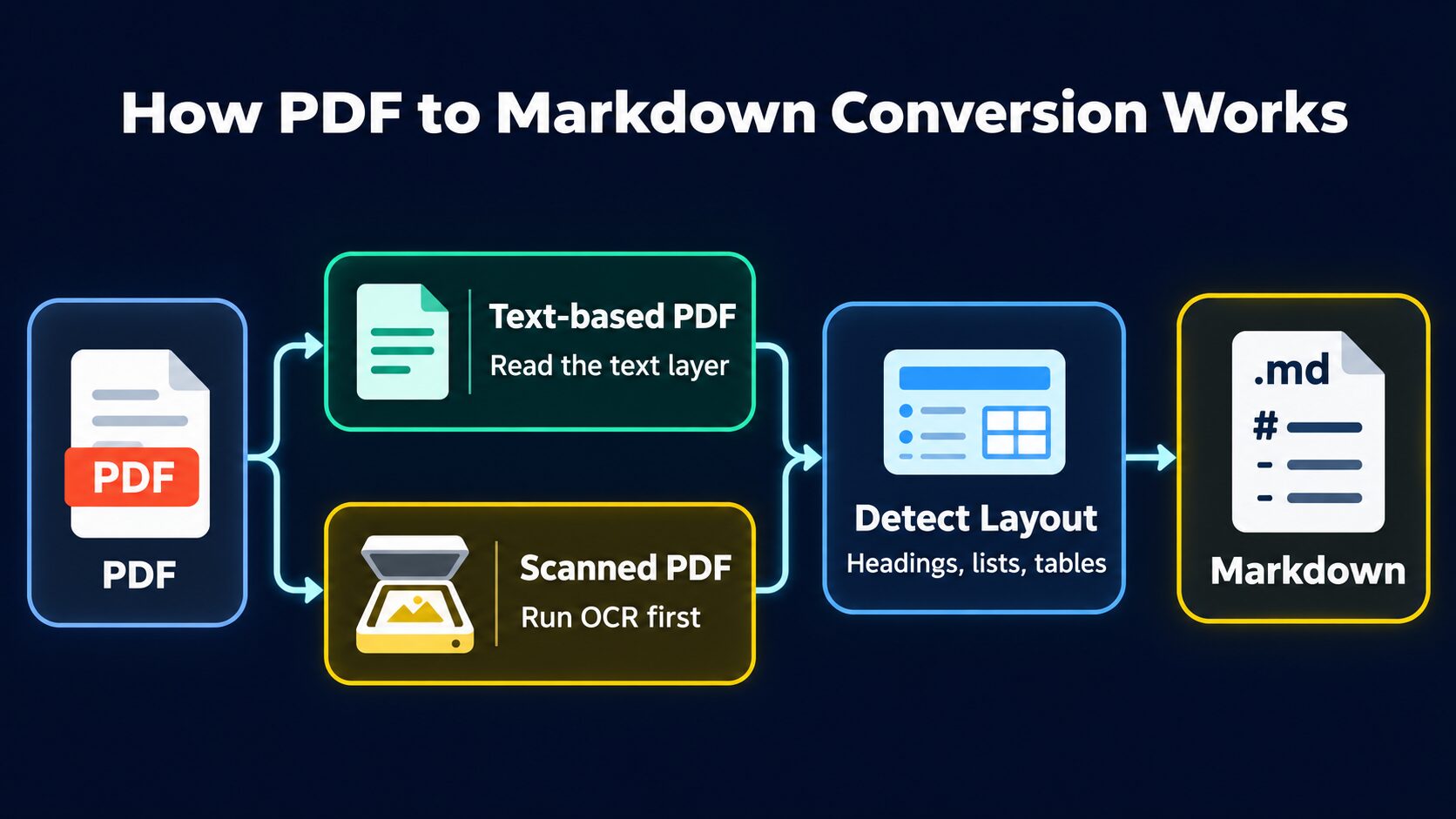
This is why these tools differ so much in speed and setup. SpeedVitals and MarkItDown read the text layer directly, which took 2.1 seconds or less per file in our test. Docling, Marker, and LlamaParse add AI models for layout analysis and OCR, which lets them handle scans but costs more time per page, a GPU, or credits.
How We Tested
We ran four public PDFs through SpeedVitals and MarkItDown on an Apple M1 machine with 8 GB of RAM:
- A 14-page research paper: the TraceMonkey paper from Mozilla's pdf.js test files (992.5 KB).
- A 16-page table exported from Excel: California's WARN layoff report from the pdfplumber project's examples (467.4 KB).
- A one-page statistics table with more than 20 columns: also from pdfplumber's examples (88.3 KB).
- A one-page scanned flyer with no text layer: from OCRmyPDF's test files (73.5 KB).
We checked three things: how long each conversion took, whether words, dates, and numbers came through intact, and what each tool did with the scanned page.
SpeedVitals times run from selecting the file to the Markdown appearing on the page (in a Chromium-based browser), and they show the range across two or three runs. MarkItDown 0.1.9 times are for the full markitdown command, including Python startup, averaged over three runs. For the paper, we left out a cold first run that took 3.7 seconds.
Marker, Docling, and LlamaParse aren't part of this test. Marker and Docling need PyTorch and model downloads, and LlamaParse needs an account and an API key, so their sections are based on their documentation and on what users have reported.
Here's what we saw:
| Test PDF | SpeedVitals | MarkItDown |
|---|---|---|
| 14-page research paper | 0.36 to 0.37 s, words spaced correctly | 1.8 s, many words ran together ("andisusedfortheapplication") |
| 16-page Excel table | 0.27 to 0.48 s, dates intact ("03/25/2016") | 2.1 s, dates split apart ("0 3 / 2 5 / 2 0 16") |
| One-page wide table | 0.11 to 0.16 s, each state's numbers on the same line as its name | 0.55 s, all 55 state and territory names first, then the numbers column by column |
| Scanned flyer | A notice that the PDF is scanned or image-only | An empty file with no warning |
SpeedVitals finished every text-based file in under half a second, while MarkItDown took between 0.55 and 2.1 seconds. The output differed even more. An LLM will read merged words, broken dates, and numbers separated from their row labels as real data, so these errors end up in its answers.
SpeedVitals PDF to Markdown
SpeedVitals PDF to Markdown is a free online converter. You drop a PDF of up to 25 MB on the page, and it shows the raw Markdown next to a rendered preview, with buttons to copy it or download a .md file. It also shows the Markdown size, an estimated token count, the word and character count, and how much smaller the output is than the PDF.
The conversion runs in your browser. When we watched the network requests during our test, the page loaded one 152 KB script on the first conversion and never sent the PDF anywhere. So you can convert a contract or an internal report without uploading it to anyone's server.
It was also the faster of the two converters we tested, at under half a second for every text-based file, including the 14-page paper. Words were spaced correctly, dates stayed intact, and each row of the wide table stayed on one line with its label.
If you drop in a scanned PDF, it tells you right away that the file appears to be scanned or image-only and needs selectable text. That's more useful than an empty .md file you only notice later.
The same toolset has converters for Word, Excel, EPUB, and HTML files, so you don't need a separate tool for each format.
| Pros | Cons |
|---|---|
| ✅ Free, with no sign-up or install | ❌ No OCR for scanned PDFs |
| ✅ Converts in your browser, so the PDF isn't uploaded | ❌ 25 MB file size limit |
| ✅ Under half a second per file in our test | ❌ One file at a time |
| ✅ Clear notice for scanned PDFs | ❌ Figures and images aren't extracted |
| ✅ Token estimate and rendered preview |
For a quick conversion of a text-based PDF, this is the tool I'd use first. There's nothing to install, and the file stays on your device.
Docling
Docling is an open-source document converter started by IBM Research Zurich and now hosted by the LF AI & Data Foundation. It's MIT-licensed, runs entirely on your machine (even in air-gapped environments), and reads PDF, Word, PowerPoint, Excel, HTML, images, and more.
For PDFs, it analyzes the page layout, reading order, table structure, and formulas, and it runs OCR on scanned pages. For harder documents, it can also use GraniteDocling, IBM's vision-language model. Besides Markdown, it exports HTML, JSON, and DocTags, and it plugs into LangChain, LlamaIndex, CrewAI, and Haystack if you're building a RAG pipeline.
Getting started takes two commands (Docling needs Python 3.10 or newer):
pip install docling
docling report.pdf
The second command writes the Markdown file to your current folder. If you know the PDF has a text layer, add --no-ocr to skip OCR entirely.
Docling runs layout and table models on every page, so it's slower than a text-layer parser. The gap grows on long documents and on machines without a GPU.
| Pros | Cons |
|---|---|
| ✅ Free and open source (MIT) | ❌ Needs Python and PyTorch |
| ✅ OCR for scanned PDFs | ❌ Downloads models on first run |
| ✅ Layout, reading order, and table structure analysis | ❌ Much slower than a text-layer parser |
| ✅ Runs fully local, even air-gapped | ❌ No hosted web app |
| ✅ Integrations for LangChain and LlamaIndex |
If your PDFs include scans or complex reports and you can run Python, Docling is the free option to start with.
Marker
Marker is an open-source converter from Datalab. It converts PDF, image, PowerPoint, Word, Excel, HTML, and EPUB files into Markdown, JSON, HTML, or chunks. It formats tables, turns equations into LaTeX, extracts and saves images, and removes headers and footers by default.
For the highest accuracy, the --use_llm flag adds an LLM (Gemini by default, or Claude, OpenAI-compatible endpoints, Azure, Vertex, OpenRouter, or Ollama) to merge tables across pages, handle inline math, and extract form values. Unless you point it at a local model through Ollama, that means your pages go to the LLM provider.
Marker runs on a GPU, a CPU, or Apple Silicon. On a GPU it defaults to a "balanced" mode, and on a CPU or Apple Silicon to a lighter "fast" mode. Scanned pages and equations go through a vision-language model served by vLLM on NVIDIA GPUs, or by llama.cpp's llama-server on CPUs and Apple Silicon.
In 2024, one Redditor tried to convert a PDF of more than 200 pages on a Surface Pro 7, and Marker crashed after 45 minutes each time they ran it. A Surface Pro 7 has no dedicated GPU, and model-based converters are at their slowest on a CPU. If your laptop is similar, convert a 10-page slice with --page_range first and see how long each page takes before you start a long file.
Check the license before you use Marker at work. Its code is Apache 2.0, but its model weights use a modified OpenRAIL-M license that is free for research, personal use, and startups under $5M in funding or revenue. Larger companies need a paid license from Datalab, which also runs a hosted API with about 5,000 free pages a month for a work email.
| Pros | Cons |
|---|---|
| ✅ Tables, LaTeX equations, and extracted images | ❌ Needs Python and PyTorch, and works best on a GPU |
| ✅ OCR for scanned PDFs | ❌ Model weights need a paid license above $5M in revenue or funding |
| ✅ Optional LLM mode for higher accuracy | ❌ LLM mode sends pages to an API unless you use Ollama |
| ✅ Hosted API with free monthly pages |
Marker is the better choice for papers full of equations, or when you need the images as well as the text, as long as you have a GPU.
MarkItDown
MarkItDown is Microsoft's open-source Python utility (MIT) for converting files to Markdown for LLMs and text analysis. It handles PDF, PowerPoint, Word, Excel, images, audio, HTML, CSV, JSON, XML, ZIP files, YouTube URLs, and EPUB, and it needs Python 3.10 to 3.14.
pip install 'markitdown[pdf]'
markitdown report.pdf -o report.md
PDFs were its weak spot in our test: words ran together in the research paper, dates broke apart in the Excel table, and the wide table lost the link between each state and its numbers. Microsoft is upfront about this: its README says the output is meant for text analysis tools and "may not be the best option for high-fidelity document conversions for human consumption."
There's no built-in OCR either. The markitdown-ocr plugin reads text from images through an LLM's vision model, and Azure Document Intelligence adds cloud layout extraction. Without an LLM client configured, the plugin skips OCR silently, which matches what we saw: the scanned flyer produced an empty file.
| Pros | Cons |
|---|---|
| ✅ One tool for PDF, Word, PowerPoint, Excel, and more | ❌ Merged words and broken dates in our PDF test |
| ✅ Free (MIT), with a light install and no models | ❌ No built-in OCR, and an empty file for our scanned PDF |
| ✅ Command line, Python API, and an MCP server package | ❌ Slower than SpeedVitals on every PDF in our test |
MarkItDown makes sense when your pipeline also handles Word, PowerPoint, or Excel files and you want one Python dependency for all of them. For PDFs alone, I wouldn't recommend it.
LlamaParse
LlamaParse is the cloud document parser from LlamaIndex. You send files through its API, its SDKs, or the LlamaCloud web app, and it returns Markdown. It has four parse tiers, and the Agentic tiers are built for scanned pages, multi-column layouts, real tables, and embedded charts.
Pricing is per page, in credits. Pay-as-you-go credits cost $1.50 per 1,000, and new users get 10,000 free credits a month. Here's what that works out to, based on LlamaIndex's pricing page and docs at the time of writing:
| Parse Tier | Credits per Page | Cost per 1,000 Pages | Pages Covered by the Free Credits |
|---|---|---|---|
| Fast | 1 | $1.50 | 10,000 |
| Cost-effective | 3 | $4.50 | About 3,333 |
| Agentic | 10 | $15.00 | 1,000 |
| Agentic Plus | 25 | $37.50 | 400 |
Re-parsing the same file within 48 hours costs no credits, since results are cached. The Pro plan costs $500/month and lowers credits to $1.25 per 1,000.
LlamaParse is worth paying for on documents that local tools struggle with. One person on Reddit working with scanned documents that included handwriting said LlamaParse was the only tool they'd found that did the job reliably, and it could even show in Markdown which option on a form had been ticked. The free local OCR tools they tried, PaddleOCR, EasyOCR, and OCRmyPDF, handled the handwriting even worse than Google's and AWS's services.
If your documents look like that, run a sample through the free credits and compare the result with Docling before you commit to a tier.
| Pros | Cons |
|---|---|
| ✅ Agentic tiers for scans, handwriting, and complex layouts | ❌ Paid beyond the free credits |
| ✅ No hardware to manage, and it scales to large volumes | ❌ Your files are uploaded to LlamaIndex's cloud |
| ✅ 10,000 free credits a month | ❌ Needs an account and an API key |
| ✅ Free re-parses within 48 hours |
I'd keep LlamaParse for large volumes of scanned or form-heavy documents, when you have a budget and uploading the files is acceptable.
Which PDF to Markdown Converter Should You Choose?
Summing up, here's your best choice:
- A text-based PDF you want in ChatGPT, Claude, or your notes right now? SpeedVitals. It's free, there's nothing to install, and the file stays in your browser.
- Scanned PDFs or complex reports, and you can run Python? Docling, free and fully local.
- Papers with equations, or you need the images too, and you have a GPU? Marker.
- Word, PowerPoint, and Excel files in the same Python pipeline? MarkItDown, but not for PDFs where the details matter.
- Thousands of scanned pages or forms, and a budget? LlamaParse.
Whichever converter you use, open the Markdown before you hand it to a model and check a page with a table and a page with a figure. If the content you need in Markdown is a web page rather than a PDF, our HTML to Markdown converter shows the text left once scripts and styles are stripped. Our guide on whether AI crawlers can read JavaScript covers what that raw text means for AI search.