How to Connect WordPress MCP with Claude and ChatGPT

Claude and ChatGPT already read your pages through their AI crawlers. With the Model Context Protocol (MCP), they can also work inside your WordPress site: search posts, create drafts, and update content from a chat window, without you opening wp-admin.
WordPress got its official MCP Adapter in the WordPress.org plugin directory on 7 October 2026. But if you install it, connect Claude, and ask for a new blog post, Claude won't be able to create one. Connecting WordPress MCP with Claude and ChatGPT takes a few more pieces than the plugin's name suggests.
In this article, I'll show you how to connect a self-hosted WordPress site to Claude Desktop, Claude Code, Claude on the web, and ChatGPT, and how to add the publishing tools that let them write posts.
Install the official MCP Adapter plugin (version 0.7.0, still experimental), then add a publishing ability, because on a stock site the adapter only exposes three discovery meta-tools and three read-only core abilities. For Claude Desktop and Claude Code, connect through Automattic's @automattic/mcp-wordpress-remote proxy with a WordPress Application Password. ChatGPT needs a remote MCP server with OAuth on an eligible Business, Enterprise, or Edu workspace, so use an OAuth-capable self-hosted MCP plugin or a gateway instead of pasting the stock adapter URL.
This guide covers WordPress.org software running on your own hosting. WordPress.com sites and the WordPress.com/Jetpack cloud MCP service work differently, and they're not covered here.
We haven't run this setup hands-on for this article. Everything below comes from the official WordPress, Anthropic, and OpenAI documentation and the WordPress.org plugin directory, checked on 9 October 2026. Third-party plugin features are vendor claims, so test them on staging before you give them publishing rights.
Let's first try and understand what WordPress MCP is.
What WordPress MCP Is and How It Works
MCP is an open protocol that lets an AI client such as Claude or ChatGPT discover and call tools on an external server. On WordPress, those tools sit on three separate layers, and mixing them up is why so many setup guides go wrong.
Here's a quick illustration of how a request travels from the AI client to your site:
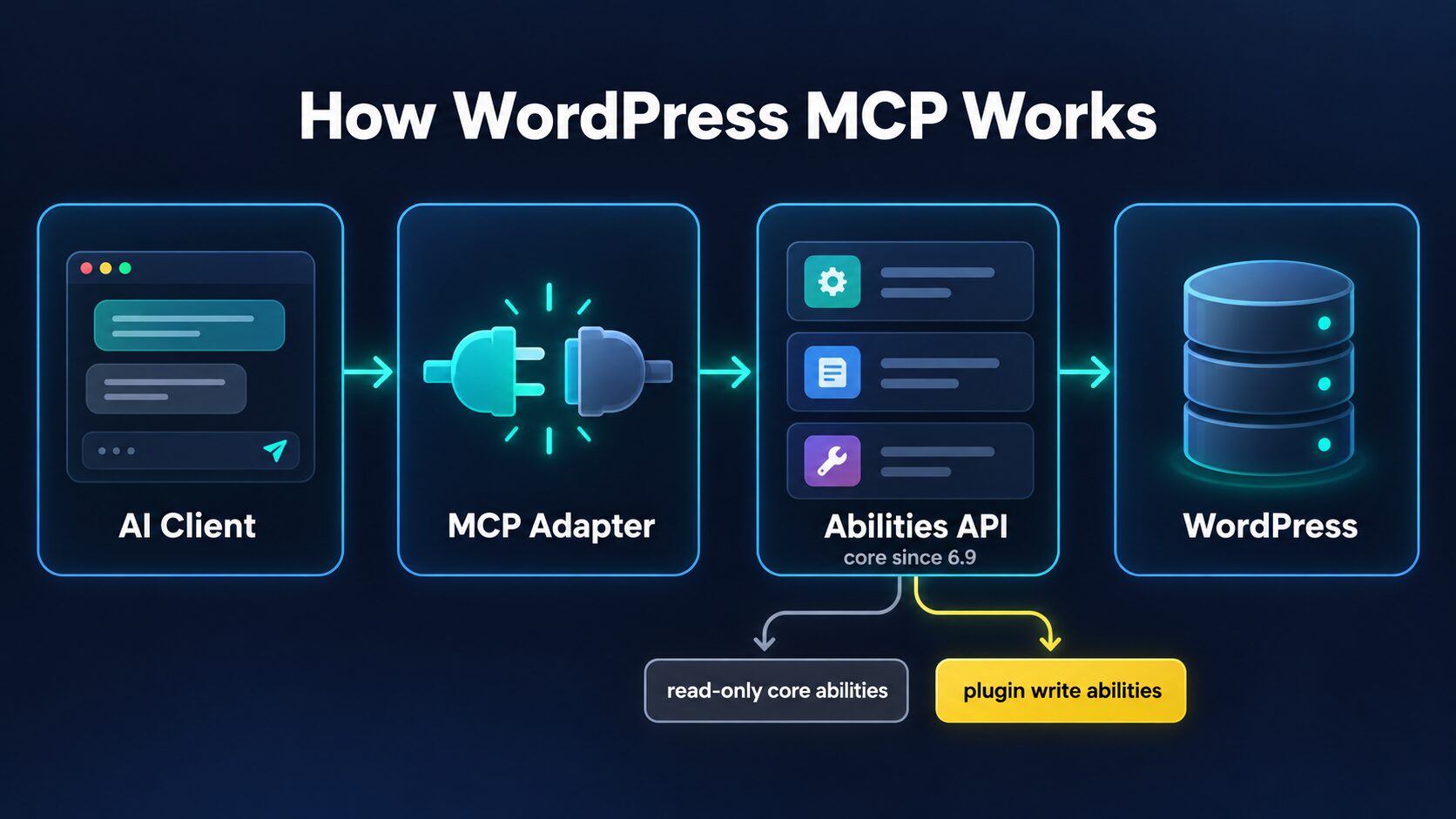
- Abilities API: a registry of typed, permission-gated actions such as
editorial/create-draft. It has been part of WordPress core since 6.9, and core or a plugin supplies the logic behind each ability. - MCP Adapter: a plugin (not part of core) that makes selected abilities available to MCP clients. It handles transport, discovery, errors, and authorization, but it doesn't write content by itself, and it doesn't turn the whole REST API into tools.
- AI client: Claude or ChatGPT supplies the conversation and the planning. Your site only changes when a registered tool runs with enough WordPress permissions.
Notice where the write abilities sit in the illustration. Plugins supply them, while core only ships read-only abilities.
WordPress 7.1 also added meta.public as a unified exposure flag for abilities, and the adapter honors meta.mcp.public to opt an ability in or out of MCP specifically. Exposure is not permission. A public ability can be discovered, but the user calling it still has to pass authentication and the ability's permission_callback.
What the Official MCP Adapter Does out of the Box
The canonical MCP Adapter (version 0.7.0) runs an MCP server at https://example.com/wp-json/mcp/mcp-adapter-default-server. The WordPress AI team's launch post describes it as experimental ahead of version 1.0.
Its default server advertises exactly three meta-tools:
| MCP Tool Name | What It Does | What It Doesn't Do |
|---|---|---|
mcp-adapter-discover-abilities | Lists the abilities available for MCP discovery | Doesn't search or list blog posts |
mcp-adapter-get-ability-info | Shows an ability's description and input/output schema | Doesn't fetch a post unless a fetch ability exists |
mcp-adapter-execute-ability | Runs one discovered, permitted ability | Doesn't create or update posts without the matching ability |
Inside WordPress, the same tools use slashes (mcp-adapter/discover-abilities and so on). The adapter keeps this list short on purpose: the client discovers abilities first, inspects the one it needs, and then executes it.
On a stock WordPress 7.1 site, these meta-tools have only three core abilities to work with:
| Core Ability | Returns | Can It Write Content? |
|---|---|---|
core/get-site-info | Site name, URL, language, WordPress version, and other permitted settings | No |
core/get-user-info | The signed-in user's profile and roles (7.1 adds first and last name, nickname, bio, and URL) | No |
core/get-environment-info | Runtime details such as the PHP version | No |
So, can Claude write posts with just the adapter installed? No. None of these six tools creates, searches, or updates a post. You won't see anything like create_post, update_post, upload_media, or set_featured_image until a plugin registers an ability for it.
Your site's real list depends on which plugins register public abilities, so run discovery on your own install first.
Watch Out for Old Tutorials
If you've come across a tutorial that lists wp_add_post and wp_update_post tools, a /wp-json/wp/v2/wpmcp endpoint, or JWT setup steps, it describes the older Automattic/wordpress-mcp plugin. Automattic archived that project on 17 September 2026, and its tools are not the canonical adapter's tools.
Don't confuse it with Automattic/mcp-wordpress-remote. That one is a separate proxy, it's still maintained, and we'll use it to connect Claude below.
Choose Your Route Before Installing Anything
The right setup depends on your AI client and how much control you want. Here's a table of the practical options:
| Goal | Practical Solution | Coding Needed | Main Caveat |
|---|---|---|---|
| Ask Claude to create or update posts today | Self-hosted MCP plugin with publishing tools | Usually none | Audit its permissions and content fidelity |
| A narrow, reviewable publishing integration | Official MCP Adapter plus your own Abilities API plugin | A small PHP plugin | You register each capability yourself |
| Claude Desktop or Claude Code with a remote site | MCP Adapter, abilities, and Automattic's local proxy | Configuration only | The Application Password carries that user's capabilities |
| ChatGPT on the web | Self-hosted MCP server with ChatGPT-compatible OAuth, or a gateway | Depends on the plugin | Plan, workspace, and OAuth requirements |
| A script or coding agent that publishes drafts | WordPress REST API plus an Application Password (no MCP) | Script or config | The agent needs an HTTP tool and careful permissions |
| A WordPress install on the same machine as the agent | wp mcp-adapter serve over STDIO | WP-CLI | The MCP process must run where the WordPress files are |
If you or a developer can deploy one PHP file, I would start with the official adapter plus a small, draft-only ability. You get exactly the tools you approve and nothing more.
If you can't deploy code, a publishing MCP plugin is the shortest path, as long as you audit it first.
Step 1: Install the MCP Adapter
Before installing, check these requirements:
- WordPress 6.9 or later, ideally the current 7.1.3.
- PHP 7.4 or later for MCP Adapter 0.7.0. That's the minimum the plugin accepts, not a recommendation to run an old PHP version.
- HTTPS with a trusted certificate for any remote client.
- A working REST API and rewrite rules, with no security plugin, WAF, or proxy blocking authenticated requests to
/wp-json/mcp/. - A dedicated WordPress user for the AI, usually with the Author or Editor role. Don't give a content-only agent an Administrator account.
- Node.js 22 or later on your own computer if you'll use Automattic's proxy for Claude.
Install it once from Plugins > Add New in wp-admin, or skip the admin panel entirely with WP-CLI:
wp core version
wp plugin install mcp-adapter --activate
wp plugin get mcp-adapter --field=version
wp mcp-adapter list --format=json
Your endpoint is https://example.com/wp-json/mcp/mcp-adapter-default-server. Don't test it by opening it in a browser. MCP isn't a web page, and its protocol methods use authenticated POST requests, so an error in the browser tells you nothing.
Step 2: Create an Application Password
Application Passwords are built into WordPress, and you can revoke the AI's password at any time without touching anyone's real login.
Create one for the dedicated user after confirming its role:
# editorial-agent is an example username; use your own dedicated user
wp user application-password create editorial-agent "Claude MCP" --porcelain
WordPress shows the password only once, so save it in a password manager or a local environment file right away. Never commit it to a repository.
The Application Password is not the user's sign-in password. Clients send it as HTTP Basic Authentication (username plus generated password) over HTTPS, and WordPress still enforces that user's role.
Here's a quick authentication check:
curl --user 'editorial-agent:abcd efgh ijkl mnop qrst uvwx' \
  'https://example.com/wp-json/wp/v2/users/me'
A 200 response that names the right user confirms that WordPress authentication works. It doesn't confirm that any publishing ability exists yet.
Step 3: Add Publishing Tools
A fresh install can't write posts because nothing on the site has registered a publishing ability yet. You have two ways to add one.
Option A: Install a Publishing MCP Plugin
Several self-hosted plugins ship their own MCP server with post creation and editing tools already built in. This is the fastest no-code path, and it's also the only quick path for ChatGPT if the plugin supports OAuth. I've compared the main options in Self-Hosted WordPress MCP Plugins to Consider below.
Option B: Register Your Own Abilities
This path keeps the official adapter and grants only the operations you choose. The plugin below registers two abilities: one creates a draft, and the other updates an existing draft. The update ability refuses to touch published posts on purpose, because a change to a published post goes live immediately and deserves its own reviewed tool.
Save it as wp-content/plugins/editorial-mcp-abilities/editorial-mcp-abilities.php (deploy it over SSH or CI), and keep the MCP Adapter active:
<?php
/**
 * Plugin Name: Editorial MCP Abilities (Example)
 * Description: Narrow WordPress Abilities for draft creation/editing.
 * Version: 0.1.0
 */

add_action('wp_abilities_api_init', function () {
    $mcp_meta = array(
        'mcp' => array('public' => true, 'type' => 'tool'),
        'annotations' => array('readonly' => false, 'destructive' => false),
    );

    wp_register_ability('editorial/create-draft', array(
        'label' => 'Create blog draft',
        'description' => 'Create a new WordPress post as a draft only.',
        'category' => 'site',
        'input_schema' => array(
            'type' => 'object',
            'properties' => array(
                'title' => array('type' => 'string', 'minLength' => 1),
                'content' => array('type' => 'string'),
            ),
            'required' => array('title', 'content'),
            'additionalProperties' => false,
        ),
        'output_schema' => array(
            'type' => 'object',
            'properties' => array(
                'id' => array('type' => 'integer'),
                'status' => array('type' => 'string'),
            ),
            'required' => array('id', 'status'),
        ),
        'permission_callback' => function () {
            return current_user_can('edit_posts');
        },
        'execute_callback' => function ($input) {
            $id = wp_insert_post(array(
                'post_type' => 'post',
                'post_status' => 'draft',
                'post_author' => get_current_user_id(),
                'post_title' => $input['title'],
                'post_content' => $input['content'],
            ), true);
            if (is_wp_error($id)) {
                return $id;
            }
            return array('id' => (int) $id, 'status' => 'draft');
        },
        'meta' => $mcp_meta,
    ));

    wp_register_ability('editorial/update-draft', array(
        'label' => 'Update an existing draft',
        'description' => 'Replace title/content of a draft post; never edit live posts.',
        'category' => 'site',
        'input_schema' => array(
            'type' => 'object',
            'properties' => array(
                'post_id' => array('type' => 'integer', 'minimum' => 1),
                'title' => array('type' => 'string', 'minLength' => 1),
                'content' => array('type' => 'string'),
            ),
            'required' => array('post_id'),
            'additionalProperties' => false,
        ),
        'output_schema' => array(
            'type' => 'object',
            'properties' => array(
                'id' => array('type' => 'integer'),
                'status' => array('type' => 'string'),
            ),
            'required' => array('id', 'status'),
        ),
        'permission_callback' => function ($input) {
            return isset($input['post_id'])
                && current_user_can('edit_post', (int) $input['post_id']);
        },
        'execute_callback' => function ($input) {
            $id = (int) $input['post_id'];
            $post = get_post($id);
            if (!$post || $post->post_type !== 'post' || $post->post_status !== 'draft') {
                return new WP_Error('draft_required', 'Only existing post drafts may be edited.');
            }
            if (!array_key_exists('title', $input) && !array_key_exists('content', $input)) {
                return new WP_Error('no_changes', 'Provide a title or content change.');
            }
            $changes = array('ID' => $id);
            if (array_key_exists('title', $input)) {
                $changes['post_title'] = $input['title'];
            }
            if (array_key_exists('content', $input)) {
                $changes['post_content'] = $input['content'];
            }
            $result = wp_update_post($changes, true);
            if (is_wp_error($result)) {
                return $result;
            }
            return array('id' => $id, 'status' => get_post_status($id));
        },
        'meta' => $mcp_meta,
    ));
});
Then activate it and confirm that the adapter sees it:
wp plugin activate editorial-mcp-abilities
wp mcp-adapter list --format=json
Claude or ChatGPT can now find editorial/create-draft and editorial/update-draft through the three meta-tools, along with each ability's input schema.
WordPress 7.1 requires abilities to be registered on the wp_abilities_api_init hook, and the category must already exist (site is built in). If either is wrong, wp_register_ability() fails silently.
This is starter code, not a production-reviewed plugin. Test sanitization, slashing, Gutenberg blocks, and revisions on staging first, using the official guide to creating abilities.
For a real editorial workflow, I would add these abilities next, in roughly this order:
| Priority | Ability | Why |
|---|---|---|
| First | search-posts, get-editable-post, preview-diff | No duplicates, and the AI reads before it patches |
| Next | publish-approved-post | Publishing stays a separate, approved permission |
| Next | upload-image, set-featured-image, list-and-assign-terms | Media, alt text, and correct category and tag IDs |
| Next | read-and-update-registered-meta | SEO, ACF, and custom field data |
| Later | Pages, custom post types, read-only SEO audits | Broader CMS work with separate permissions |
Abilities such as "execute PHP", "install plugins", "modify theme files", or unrestricted SQL don't belong on a publishing agent. Leave them out, or put them on a separately governed server and role.
To list create-draft as a first-class tool instead of going through discovery, register a custom MCP server on the mcp_adapter_init hook, or extend the default server with the mcp_adapter_default_server_config filter. The tradeoff is that every listed tool schema takes up room in the client's context window. You can paste a schema into our AI token counter to see how many tokens it costs on each request.
Step 4: Smoke Test the MCP Endpoint
Before connecting any AI client, check that the endpoint answers an MCP request. The official default server guide documents this flow for the 2025-11-25 protocol revision:
# MCP 2025-11-25 initialize request; -i prints the response headers
curl -i -X POST \
  --user 'editorial-agent:abcd efgh ijkl mnop qrst uvwx' \
  -H 'Content-Type: application/json' \
  -H 'Accept: application/json, text/event-stream' \
  'https://example.com/wp-json/mcp/mcp-adapter-default-server' \
  --data '{"jsonrpc":"2.0","id":1,"method":"initialize","params":{"protocolVersion":"2025-11-25","capabilities":{},"clientInfo":{"name":"test-client","version":"1.0"}}}'
On this revision, the response includes an Mcp-Session-Id header. Send it with the initialized notification and with your tools/list request, as the guide shows. A single POST to tools/list without the handshake can fail with a 400 error.
Adapter 0.7.0 also supports the newer, stateless 2026-07-28 revision. Modern clients negotiate the version on their own, so this manual test mostly matters when you're debugging.
How to Connect WordPress MCP to Claude
There are three Claude environments, and the setup for one doesn't carry over to the others.
Claude Desktop
For a WordPress site on a remote server, the most reproducible route is Automattic's mcp-wordpress-remote proxy. Claude Desktop runs it locally over STDIO, and the proxy forwards each request to your site over HTTPS with your Application Password.
- Install Node.js 22 or later on your computer.
- In Claude Desktop, open Settings > Developer > Edit Config. On macOS, the file is usually
~/Library/Application Support/Claude/claude_desktop_config.json, and on Windows it's%APPDATA%\Claude\claude_desktop_config.json. - Merge this entry into the existing
mcpServersobject. Don't overwrite servers that are already there.
{
  "mcpServers": {
    "self-hosted-wordpress": {
      "command": "npx",
      "args": ["-y", "@automattic/mcp-wordpress-remote@latest"],
      "env": {
        "WP_API_URL": "https://example.com/wp-json/mcp/mcp-adapter-default-server",
        "WP_API_USERNAME": "editorial-agent",
        "WP_API_PASSWORD": "abcd efgh ijkl mnop qrst uvwx",
        "OAUTH_ENABLED": "false"
      }
    }
  }
}
Replace the example password with the one from Step 2.
- Restart Claude Desktop and confirm that the server shows up.
- Ask Claude: "Discover the WordPress abilities you can use, then tell me whether you can create a draft."
Two settings trip people up here. WP_API_URL must include the full /wp-json/mcp/mcp-adapter-default-server path, because older tutorials give only https://example.com, which can point the proxy at the deprecated plugin's endpoint. And OAUTH_ENABLED must be false when you use an Application Password, since the proxy's documented default is OAuth enabled.
If only the bare adapter is installed, Claude will answer questions about your site but won't be able to create a draft until Step 3 is done. Also keep in mind that this config stores the password in plain text on your computer.
Claude Code
Claude Code can run the same proxy. One way is to add it from the terminal:
claude mcp add self-hosted-wordpress \
  -e WP_API_URL=https://example.com/wp-json/mcp/mcp-adapter-default-server \
  -e WP_API_USERNAME=editorial-agent \
  -e WP_API_PASSWORD='abcd efgh ijkl mnop qrst uvwx' \
  -e OAUTH_ENABLED=false \
  -- npx -y @automattic/mcp-wordpress-remote@latest
Typing the password into a command saves it in your shell history. If you'd rather avoid that, put the same mcpServers entry in Claude Code's MCP configuration file, as described in the Claude Code MCP documentation.
If your MCP server offers a compatible OAuth flow (some publishing plugins do), you can connect over HTTP directly and sign in with /mcp inside Claude Code:
# Only for MCP servers with a compatible OAuth flow (example: Publishio's endpoint)
claude mcp add --transport http wordpress https://example.com/wp-json/mcp/publishio
Don't expect that command to work against the stock adapter, which uses HTTP Basic rather than an MCP OAuth login. Claude Code can send a correctly encoded Authorization: Basic header instead, but the local proxy is usually simpler.
Local WordPress over WP-CLI. If WordPress, PHP, and WP-CLI are on the same machine (or container) as Claude Code, you can skip HTTP entirely and run the adapter over STDIO:
{
  "mcpServers": {
    "local-wordpress": {
      "command": "wp",
      "args": [
        "--path=/absolute/path/to/wordpress",
        "mcp-adapter", "serve",
        "--server=mcp-adapter-default-server",
        "--user=editorial-agent"
      ]
    }
  }
}
The --user flag sets the WordPress user (and so the role) the session runs as. This doesn't work for a remote host without a carefully managed SSH bridge.
Claude on the Web
Claude also supports remote custom connectors. You add a publicly reachable MCP URL under Customize > Connectors and then configure authentication, which can be OAuth sign-in or, for supported connector setups, fixed request headers.
Claude's cloud can't reach a site on localhost. With the stock adapter, you'd need to store an encoded Basic Authorization header in the connector, and only if it can hold that securely. Never choose "No sign in" if it would expose write tools. For browser-based Claude, an OAuth-capable self-hosted publishing plugin is the cleaner option.
How to Connect WordPress MCP to ChatGPT
ChatGPT connects in a completely different way from Claude Desktop. It doesn't run your local npx command, so the proxy from the previous section isn't an option.
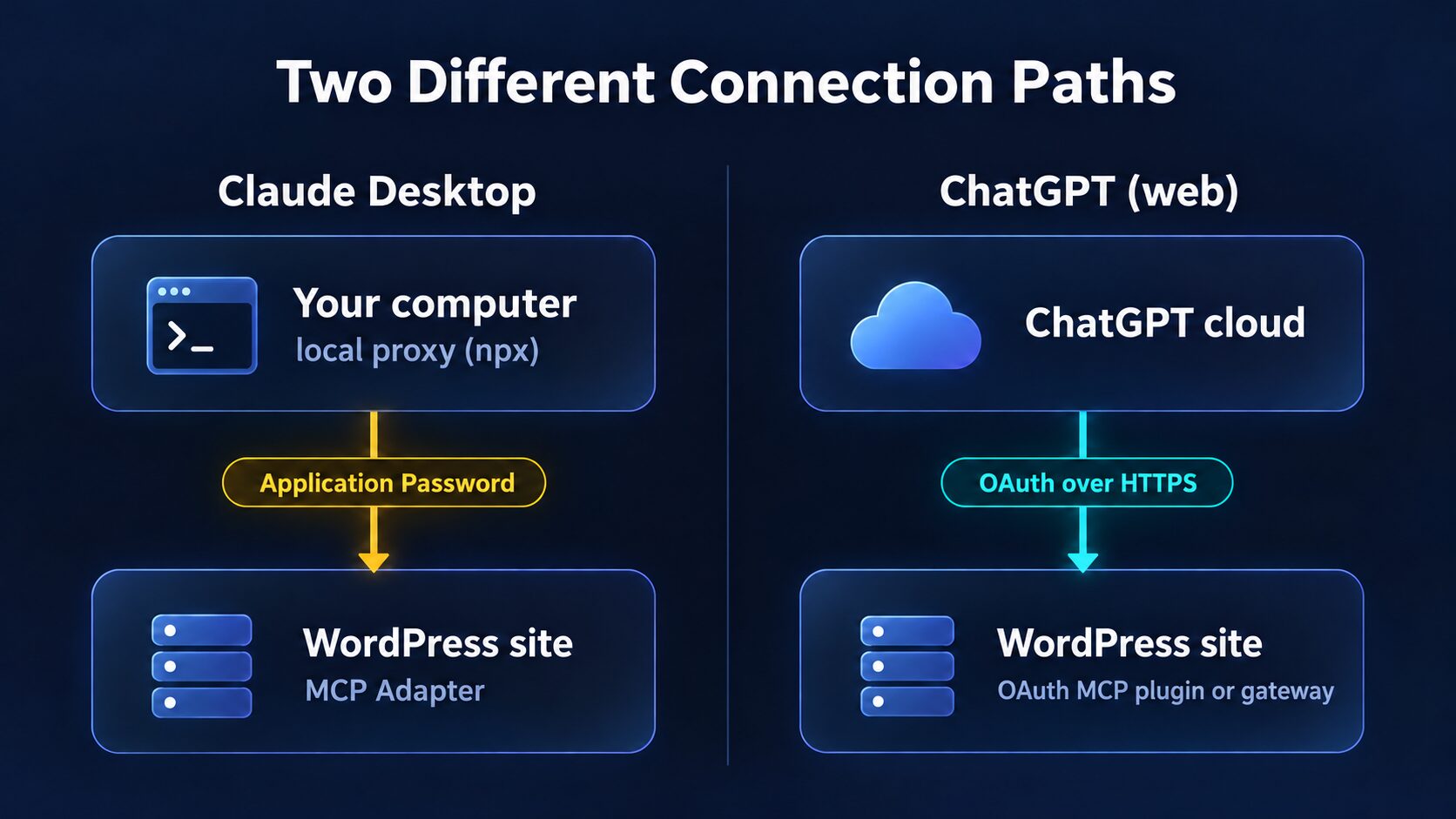
In this setup, ChatGPT talks to your site directly from OpenAI's cloud. That means your MCP server must be reachable over HTTPS and must use an authentication method ChatGPT supports.
ChatGPT Plan and Workspace Requirements
According to OpenAI's developer mode guide, full custom MCP app support, including write and modify actions, is in beta for ChatGPT Business and Enterprise/Edu on the web (as of October 2026). Workspace admins or owners have to enable and deploy the app under their own controls.
Pro users can build apps with the Apps SDK and may get read and fetch MCP functions, but don't assume custom write tools work on a personal Pro account. OpenAI's custom MCP server documentation also centers authentication on OAuth or no authentication, with no field for a username and Application Password.
This is why the stock MCP Adapter doesn't work with ChatGPT out of the box. Its Basic authentication isn't a turnkey OAuth integration, and turning authentication off just to pass the connection scan would leave your write tools open to anyone who finds the URL.
Connect an OAuth-Capable MCP Plugin
- Install a trusted self-hosted MCP plugin that provides content write tools and an MCP-compatible OAuth flow. Publishio is one documented example: its plugin page lists a self-hosted endpoint at
https://example.com/wp-json/mcp/publishioand OAuth-based ChatGPT setup. Use the exact URL your plugin shows, not the official adapter's URL. - Enable developer mode, if your workspace role allows it.
- In the workspace's or your own Apps > Create flow, enter the server URL, choose the authentication the plugin advertises, and click Scan Tools. Authorize the connection when ChatGPT asks.
- Check that the scanned tools include create and update post actions. If you only see site information or discovery tools, the missing piece is a publishing ability, not the model.
- Create a draft on a staging site, then read it back through the MCP tool. Check the title, HTML or blocks, status, tags, and metadata before you test an update on a non-production post.
- Enable only the write actions you approve, where your workspace offers action controls. ChatGPT may also ask you to confirm each write.
Using the Official Adapter with ChatGPT
If you want to keep the official adapter, you'd need an OAuth gateway in front of it. The gateway authenticates ChatGPT, maps the signed-in identity to an allowed WordPress user and role, and forwards MCP calls with credentials it stores on the server side. It should also enforce per-tool scopes and keep audit logs.
That's custom engineering, not a setting in adapter 0.7.0, and the gateway must never become a blanket proxy to the whole REST API. If you want ChatGPT working quickly, a well-maintained plugin with native OAuth is the better choice.
How to Create and Update Posts from Claude or ChatGPT
Once a publishing tool exists, the work happens in conversation. But a successful "update" response doesn't prove the page survived intact, so I'd follow this order every time:
- Ask the AI to search by slug or title, so it doesn't create a duplicate.
- Ask it to read the existing post, including its content, status, categories, and metadata.
- Ask for the new content along with a diff or summary of the changes.
- Save as a draft whenever the tool allows it.
- Ask the AI to read back the post ID, status, and content, and to share the preview link or permalink (drafts may not have a public preview).
- Only then allow publishing, or changes to an already-published post.
Here's an example request that follows this pattern:
Search my WordPress site for the post with slug
wordpress-mcp-guide. If it exists, read the full editable content before suggesting changes. Update only the introduction and add a new troubleshooting section; preserve existing heading anchors, image blocks, affiliate links, category assignments, and SEO metadata. Show the intended diff first. Do not change the published post until I approve.
MCP plugins differ in whether they preserve block editor markup, page builder layouts, ACF fields, and SEO plugin metadata. Always check the visual page after the first few updates, not only the API response.
Also check what the AI uploaded. A draft that looks fine in the editor can still carry a multi-megabyte hero image, so compress images with our image compressor before they go into the media library. After publishing, run the URL through a website speed test to confirm the new post didn't slow the page down.
Skip MCP: Use the REST API or WP-CLI Instead
For a pipeline that generates content and pushes drafts, the WordPress REST API with an Application Password is often simpler than MCP. It only works when your agent can make authenticated HTTP requests (Claude Code can), not in a chat-only client.
Create a draft:
export WP_USER='editorial-agent'
export WP_APP_PASSWORD='abcd efgh ijkl mnop qrst uvwx'  # example value

curl -sS -u "$WP_USER:$WP_APP_PASSWORD" \
  -H 'Content-Type: application/json' \
  -X POST 'https://example.com/wp-json/wp/v2/posts' \
  --data '{
    "title": "A Post Written with an AI Agent",
    "content": "<p>Draft body, in HTML or valid serialized blocks.</p>",
    "status": "draft",
    "slug": "ai-written-wordpress-draft"
  }'
Update the post with ID 123:
curl -sS -u "$WP_USER:$WP_APP_PASSWORD" \
  -H 'Content-Type: application/json' \
  -X POST 'https://example.com/wp-json/wp/v2/posts/123' \
  --data '{"title":"Revised title","excerpt":"Revised summary"}'
To publish, send an explicit status change such as {"status":"publish"} with a user role that's allowed to publish. Updates to a published post go live as soon as the request completes, so read and compare before you write.
A few things catch people out with the REST API:
- Categories and tags are numeric term IDs on the posts endpoint, not names.
- Featured images need two calls. Upload the file to
/wp-json/wp/v2/mediafirst, then set the returned attachment ID asfeatured_media. - Custom fields aren't automatically writable. Many ACF and SEO fields only work through the API when the plugin registers and exposes them.
- Markdown isn't converted for you. Raw Markdown in
contentdoesn't become proper Gutenberg blocks, so send HTML or valid serialized block markup.
The other option is WP-CLI through an AI agent with SSH access: wp post create --post_type=post --post_status=draft --post_title='...' --post_content='...' creates a draft, and wp post update edits one. Shell access is far broader than a narrow publishing tool, though, so wrap it in an allowlist of commands.
Self-Hosted WordPress MCP Plugins to Consider
These plugins are separate alternatives, not features of the official adapter. The capabilities below are from their WordPress.org listings, which means they're vendor claims, not an independent security review.
| Plugin | Advertised Capabilities | Authentication and Clients | Assessment |
|---|---|---|---|
| MCP Adapter (official) | Adapter, server, and abilities bridge; no built-in post tools | WordPress user auth over HTTP or STDIO; some clients need a custom OAuth setup | The best foundation for narrow, custom abilities |
| WPVibe (SeedProd) | Posts, pages, taxonomies, media, ACF and custom fields, WooCommerce, and more | Vendor lists Claude, ChatGPT, Cursor, and other clients | The broadest scope; check tool grants and any cloud components |
| Cowboy MCP | Posts, pages, WooCommerce, media, plus an undo and change journal | Vendor lists Claude and ChatGPT, self-hosted | Worth testing for rollback; verify that undo works with block markup and plugin meta |
| Publishio (rtCamp) | Builds pages and posts from existing Gutenberg block patterns, with previews and Yoast integration | Self-hosted endpoint at /wp-json/mcp/publishio with OAuth for ChatGPT and Claude | A good candidate for block themes and ChatGPT; small install base and needs PHP 8.2 or later |
| TechinSol AI Connect | Read, create, update, and delete posts and pages, plus other tools | Vendor lists Claude and Codex setup | Check its security design, support, and role restrictions before production |
| Invizo MCP | Granular scopes, plus content, media, and SEO extensions | Application Passwords, restricted access, self-hosted endpoint | Promising for structured permissions; check which features are free |
For context, the plugin directory showed about 60,000+ active installs for WPVibe, 800+ for Cowboy MCP, and 20+ for Publishio on 9 October 2026. Install counts don't prove security or quality. Many of these plugins also run their own MCP server, so avoid installing several overlapping write servers on one site.
Before you install any of them, get answers to these questions:
- Does the MCP server run entirely on your WordPress install, or through a vendor cloud relay?
- Can you revoke its credential on its own, and does it enforce the exact WordPress user's permissions?
- Is it limited to posts, or does it also expose users, themes, plugins, settings, or code execution?
- Does it preserve Gutenberg blocks, featured images, custom fields, and your SEO plugin's data (Yoast, Rank Math, or AIOSEO)?
- Does it offer a draft-only mode, publish approval, audit logs, and undo?
Security Checklist for AI Publishing
An AI with write access to your site deserves the same care as a new team member with an Editor login. Here's the minimum I'd put in place before production:
- Update first. Run WordPress 7.1.3 (the 6 October 2026 security release), update your plugins, and enable backups.
- One user and one credential per client. Give each AI client its own WordPress user (Author can be enough for drafts) and its own revocable Application Password or OAuth grant. Never put live credentials in a repository or a shared config.
- HTTPS and per-ability authorization. "Public" in MCP means discoverable, not writable without authentication.
- Start with drafts. Require confirmation before publishing, unpublishing, deleting, or changing live posts.
- Constrain parameters. Limit post types, statuses, metadata keys, content length, and allowed HTML or blocks.
- Read before writing. Check the modified timestamp before saving, because an editor can change the post between the AI's read and its write.
- Log actions, not secrets. Record the tool, actor, post ID, timestamp, and result. WordPress 7.1's
wp_ability_invokedhook is useful for this. Never log Application Passwords. - Plan for prompt injection. A malicious comment or content block that the AI reads can tell it to change unrelated content. Keep tool permissions narrow instead of trusting the model to ignore every malicious instruction.
The permission_callback on each ability is where WordPress enforces access. ChatGPT's confirmation prompts help, but they don't replace least privilege on your site.
Troubleshooting WordPress MCP Connections
| Symptom | Likely Cause | What to Check |
|---|---|---|
| 401 Unauthorized | Wrong Application Password, or the host strips the Authorization header | Test /wp-json/wp/v2/users/me with Basic auth; check server and proxy header forwarding |
| 403 Forbidden | The user's role fails a capability check | Check permission_callback, edit_posts, edit_post for the ID, and publish_posts |
| Claude connects but can't write posts | Only the official adapter is installed | Run discovery and add a content ability or plugin |
| ChatGPT scan or sign-in fails | Basic auth isn't OAuth, the server isn't publicly reachable, or workspace controls block it | Use an OAuth-capable plugin or gateway; check HTTPS and developer mode eligibility |
400 error or missing Mcp-Session-Id | Skipped the initialize step or session header on the older protocol | Follow the 2025-11-25 handshake |
wp_register_ability() fails silently | Missing category or the wrong hook | Use wp_abilities_api_init and an existing category; check the debug log |
| Draft formatting looks wrong | Raw Markdown or broken serialized blocks | Send HTML or valid block markup, then check after saving |
npx fails or connects to the wrong server | Old Node.js or a bare-domain WP_API_URL | Use Node.js 22 or later, the full /wp-json/mcp/mcp-adapter-default-server path, and OAUTH_ENABLED=false |
For anything not covered here, check the adapter's common issues guide and the proxy's troubleshooting page.
Which Setup Should You Choose?
The official MCP Adapter is a solid foundation, but it's not a post editor on its own. Your setup comes down to two things: which publishing tools exist on your site, and how your AI client can safely authenticate to them.
Summing up, here's your best choice:
- Claude Desktop or Claude Code, and you can deploy a PHP file? Use the official adapter, a small draft-only abilities plugin, and Automattic's proxy with an Application Password.
- Claude, and you can't write code? Use a vetted self-hosted publishing MCP plugin, after working through the audit questions above.
- ChatGPT on the web? Use an OAuth-capable self-hosted MCP plugin on an eligible Business, Enterprise, or Edu workspace. The stock adapter's Basic auth won't get you there.
- An automated pipeline that pushes drafts? Skip MCP and use the REST API with an Application Password.
Whichever route you take, start with drafts only on a staging site, and keep publishing as a separate permission you approve yourself.